Bruteforce | Owasp Top 10
Bruteforce | Owasp Top 10: Capture my notes from practicing brute-force techniques in Burp Suite, focusing on Intruder modes I actually used: Sniper (single position) and Cluster bomb (multi-position). The target used here was OWASP Bricks. • TryHackMe • Brute force • brute-force
🎯 Objective
Capture my notes from practicing brute-force techniques in Burp Suite, focusing on Intruder modes I actually used: Sniper (single position) and Cluster bomb (multi-position). The target used here was OWASP Bricks.
🧪 Lab Context
- Target: OWASP Bricks (auth form)
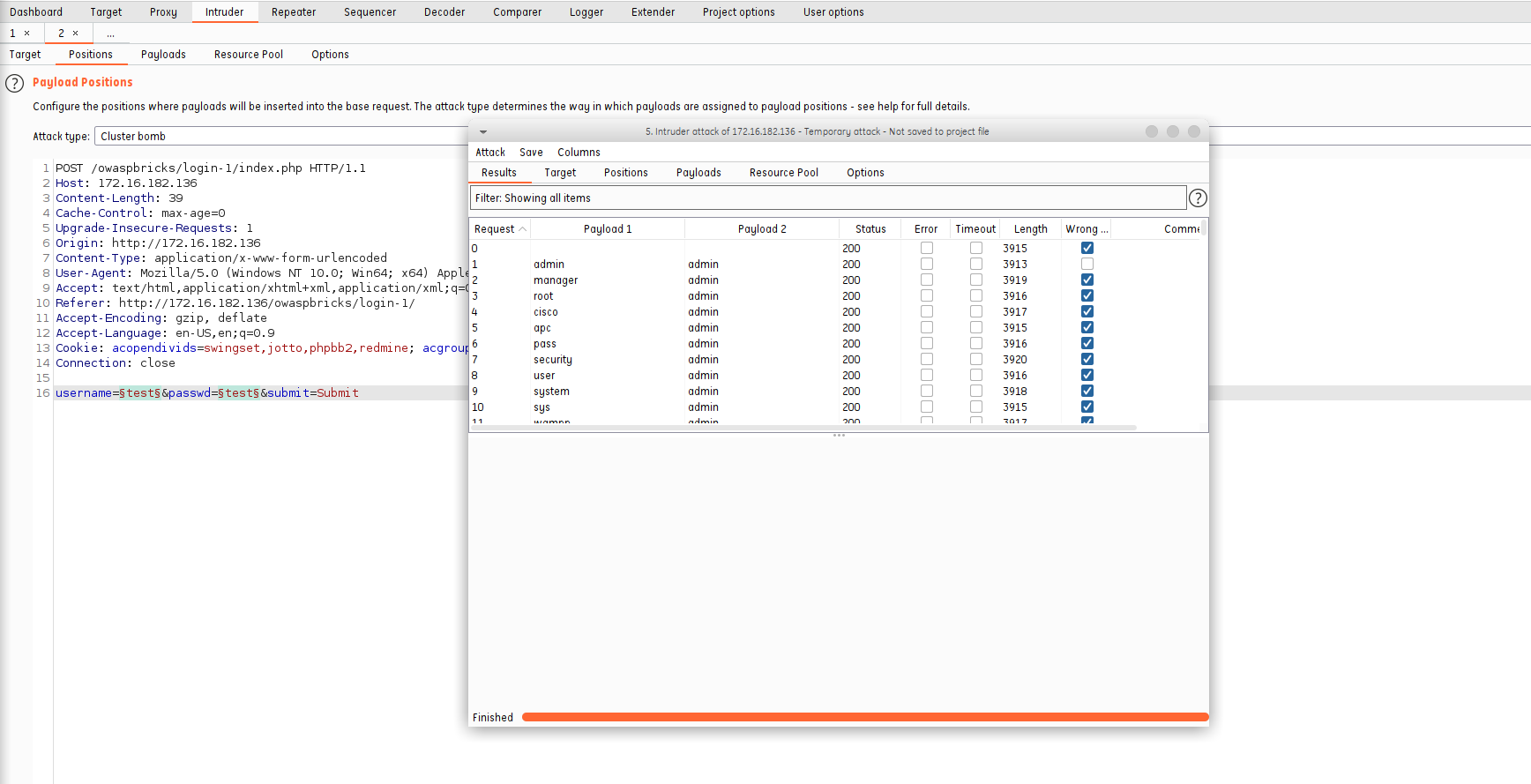
- Symptom: All responses were HTTP 200 and many had similar lengths, making naive result triage harder.
- Key idea: Use Burp’s Grep - Match (and optionally Grep - Extract) to detect success/failure phrases rather than relying on status code or length alone.
🛠 Tools
- Burp Suite (Community or Pro)
- OWASP Bricks (practice target)
🔧 Intruder Modes I Used
Sniper
- Best when there’s one position to fuzz (e.g., a single username or password field).
- You provide one payload set, Intruder mutates that one position at a time.
- My shorthand note at the time:
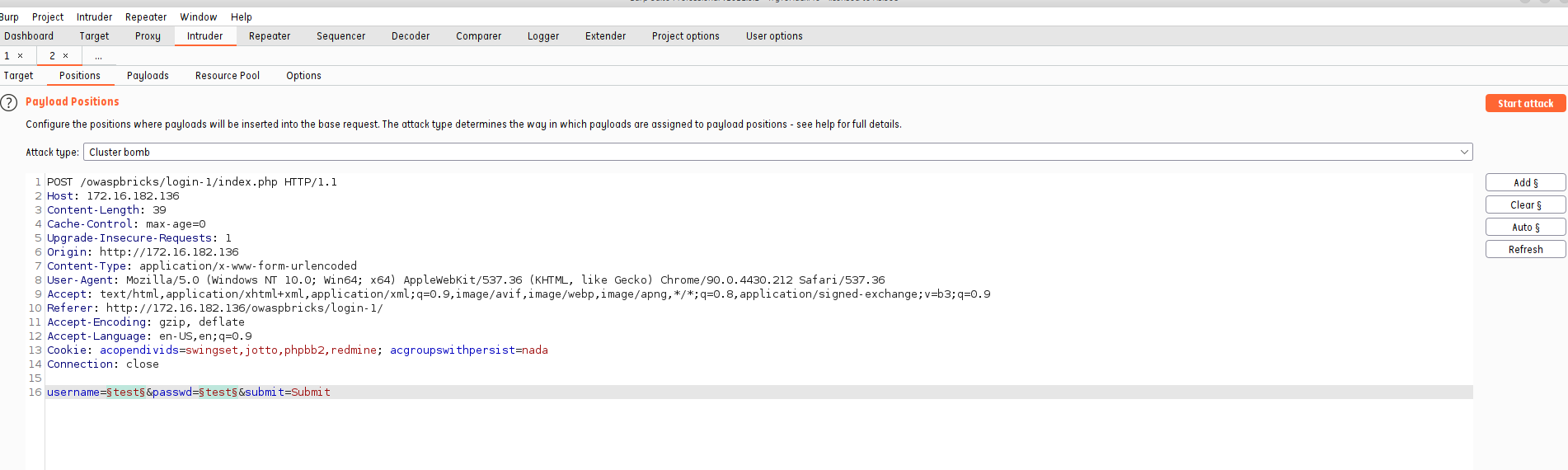
Sniper → 1 position → $test$(read as “single variable to test”).
Cluster bomb
- Best when there are multiple positions (e.g., username and password at the same time).
- You provide N payload sets (one per position) and Intruder tries all combinations (Cartesian product).
🧭 Setup (Positions & Payloads)
- Capture login request in Proxy → HTTP history and Send to Intruder.
- Positions tab:
- Clear auto-selected markers.
- Manually highlight fields (e.g.,
username=§alice§&password=§password1§). - Choose Sniper (single field) or Cluster bomb (both fields).
- Payloads tab:
- Set 1 (username): a shortlist or a full wordlist.
- Set 2 (password) (for Cluster bomb): password candidates.
- Start attack.
🔍 The Problem: “Everything is 200”
In this lab, all attempts returned 200 and many had close/identical lengths, so sorting by Status or Length was noisy.
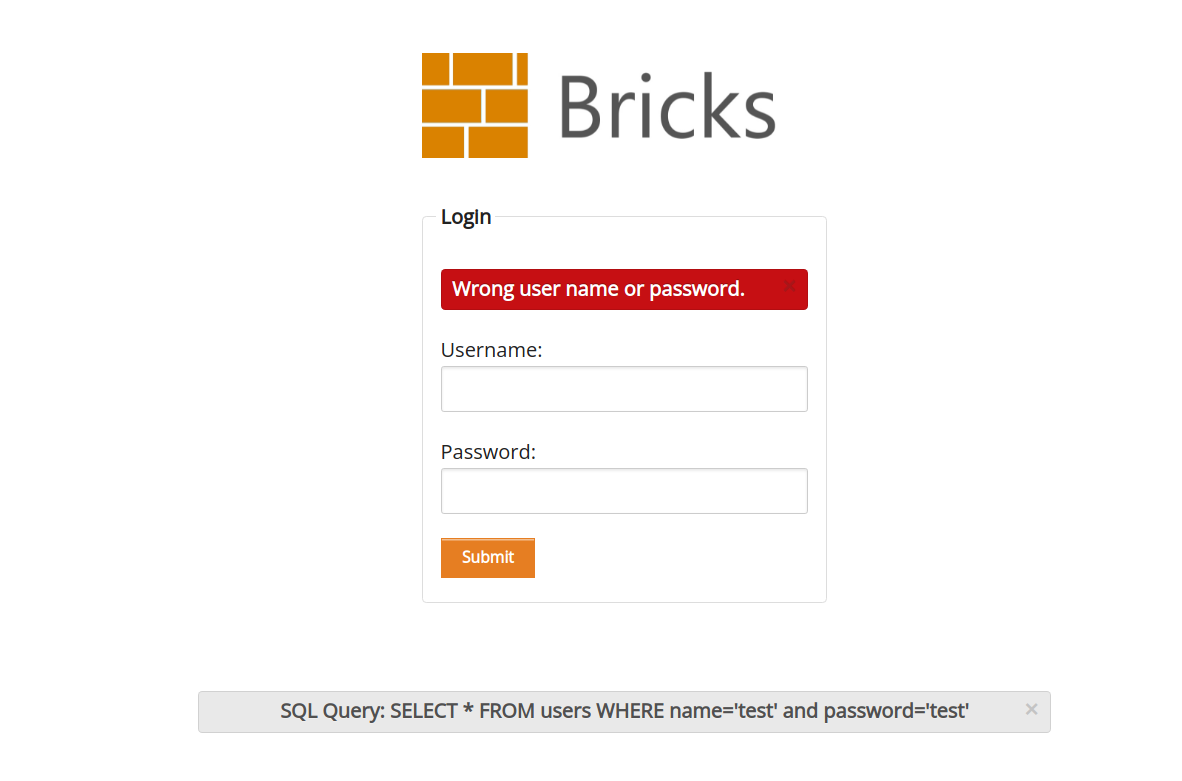
Fix: Use Grep - Match to flag the known failure phrase that the page returns (e.g., “Wrong user name or password.”). That lets you quickly filter out failures and surface the one response that doesn’t contain the failure phrase.
Where: Intruder → Options → Grep - Match → Add → Wrong user name or password.
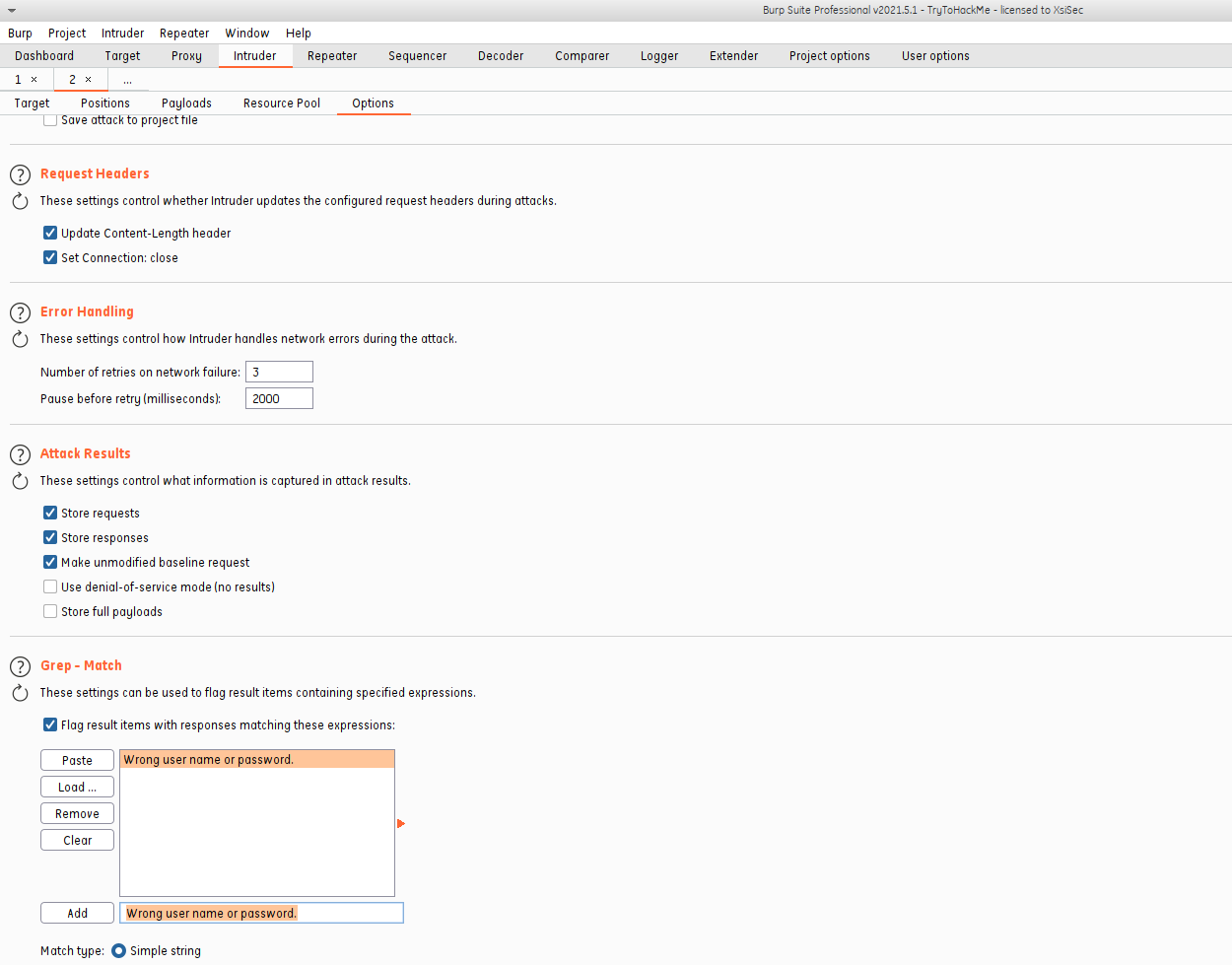
This adds a boolean column to the Intruder results. You can then sort or filter based on match presence/absence.
🧪 Optional: Grep - Extract (for dynamic cues)
If the app shows something dynamic on success (e.g., a greeting, account ID, or redirect location), use Grep - Extract to pull that text into a column and triage by it. This is great when:
- The failure phrase is inconsistent across locales,
- Or success/failure lengths are too similar,
- Or the success response includes a unique token or username echo.
✅ Outcome
- With Grep - Match on the failure string, the one correct combo clearly stood out even though status and length didn’t.
- Both Sniper (one field at a time) and Cluster bomb (user × pass combos) were tested successfully.
Quite cool 😄
📝 Mini-Cheatsheet
- Sniper → one position, single payload set.
- Cluster bomb → multiple positions, one payload set per position, Cartesian combos.
- When status/length are useless → Intruder Options → Grep - Match a known failure phrase.
- When success has a unique marker → Intruder Options → Grep - Extract that marker.
- Wordlists: start tiny (usernames/passwords you suspect), then expand.
- Ethics: Only test systems you’re authorized to test.
🖼 All Screenshots (as used)
End of notes.
Comments
Comments
Loading comments…