HTB Academy - Network Wireshark and extract
HTB Academy - Network Wireshark and extract: Use Wireshark to recover application data and files directly from captured network streams (HTTP/SMB/DICOM/FTP, etc.), and—when needed—manually reconstruct artifacts from FTP data channels using filters and Follow TCP Stream. • HTB Academy • htb-academy, module81
🎯 Objective
Use Wireshark to recover application data and files directly from captured network streams (HTTP/SMB/DICOM/FTP, etc.), and—when needed—manually reconstruct artifacts from FTP data channels using filters and Follow TCP Stream.
✅ Prereqs & Gotchas
- Capture completeness matters: You need the entire conversation (3‑way handshake → teardown) or reassembly may fail.
- Fragmentation/reassembly: If segments are missing, Wireshark can’t rebuild full objects. See TCP reassembly/fragmentation topics in Networking 101.
- Stop the live capture before exporting objects.
📦 Exporting Files the Easy Way (GUI)
- Stop your capture.
- File → Export → choose the protocol object exporter you need (e.g., DICOM / HTTP / SMB /…).
- Inspect the object list, select targets, and Save.
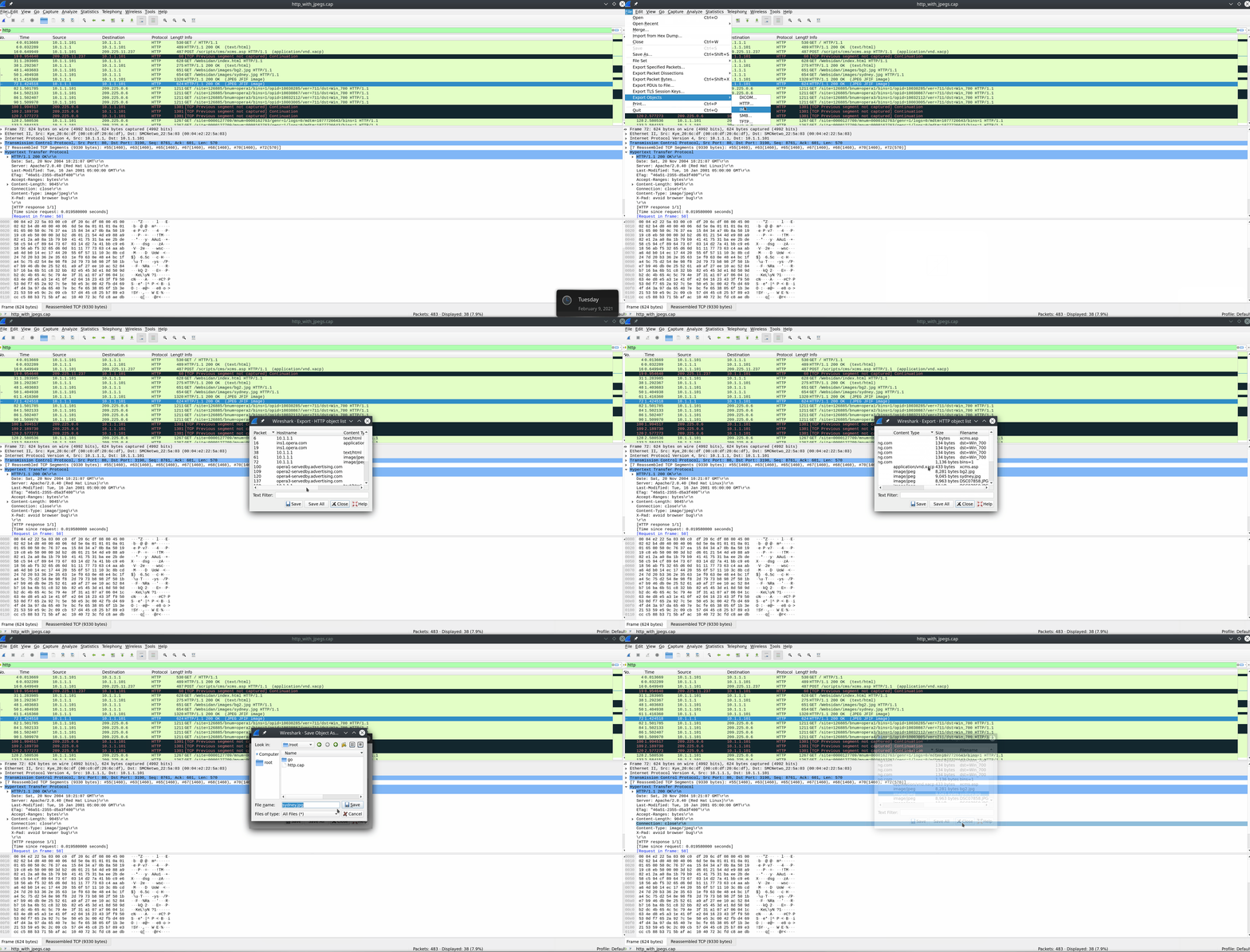
Tip: For HTTP, File → Export Objects → HTTP lists each response with filename, content‑type, and length. SMB and DICOM have similar flows.
🔎 FTP Deep Dive — Pulling Credentials & Files
FTP rides on TCP ports 21 (control) and 20 (data). Wireshark’s display filters make triage fast. Three staples:
ftp– all FTP control/data (good first pass).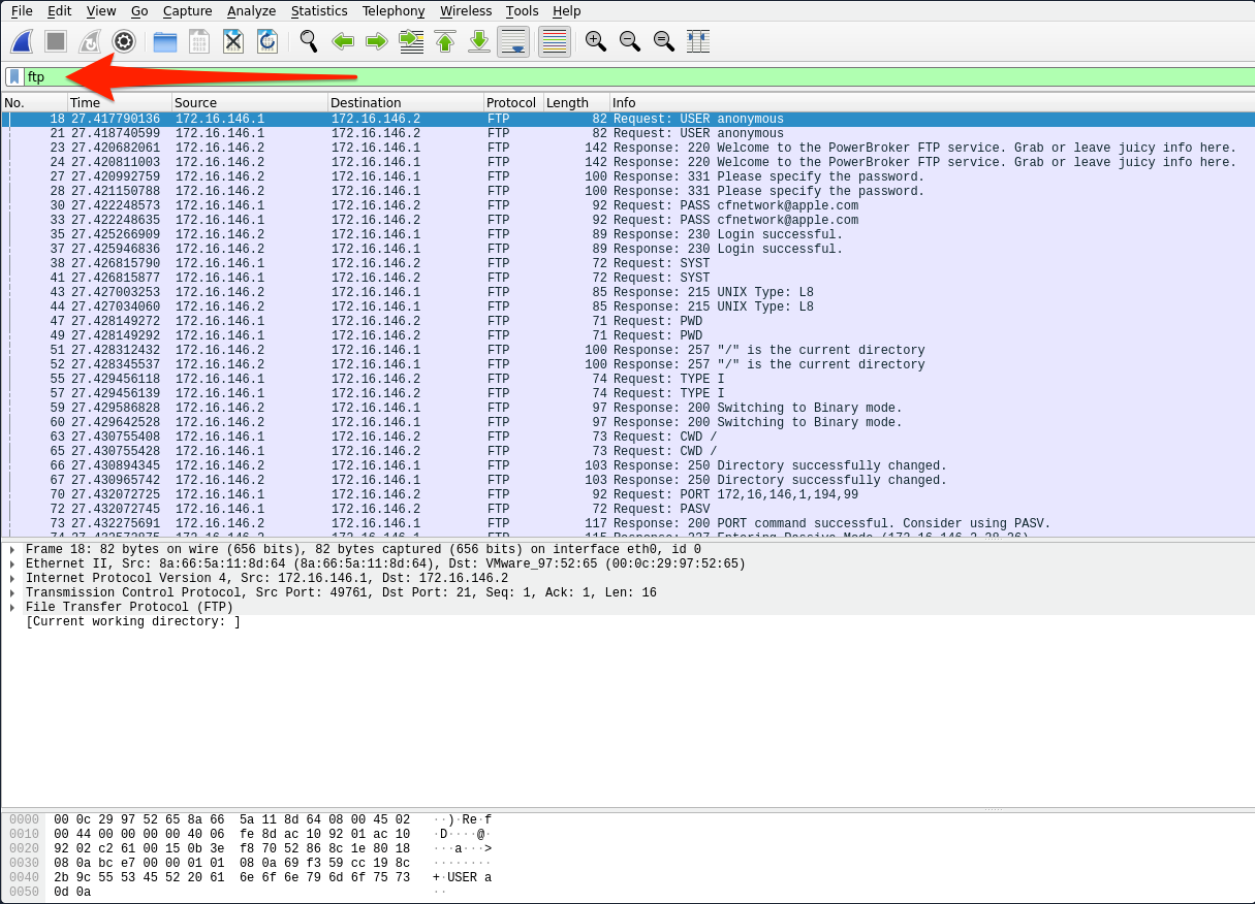
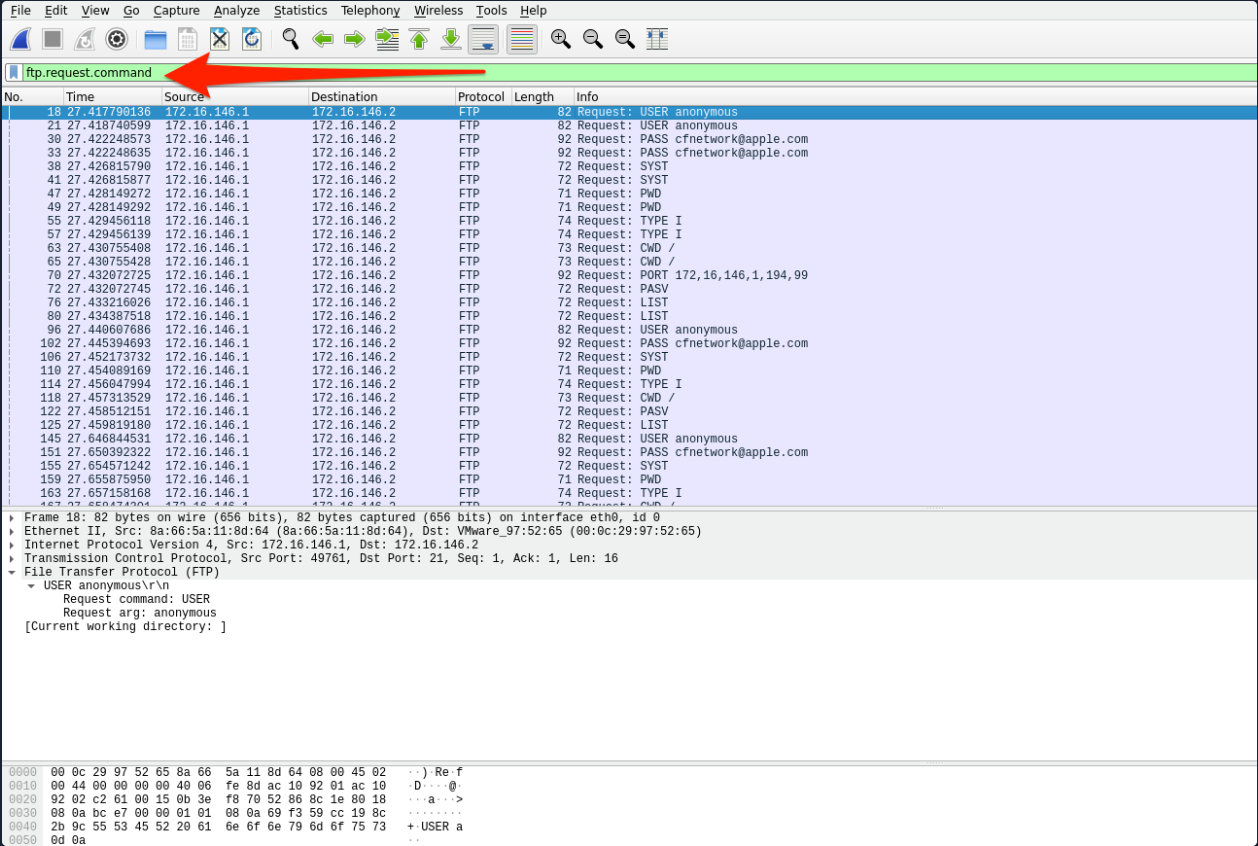
ftp.request.command– control channel commands on port 21 (watch forUSER,PASS,RETR,STOR, filenames).FTP-Request-Command Filter
ftp-data– data channel payload on port 20 (actual file bytes).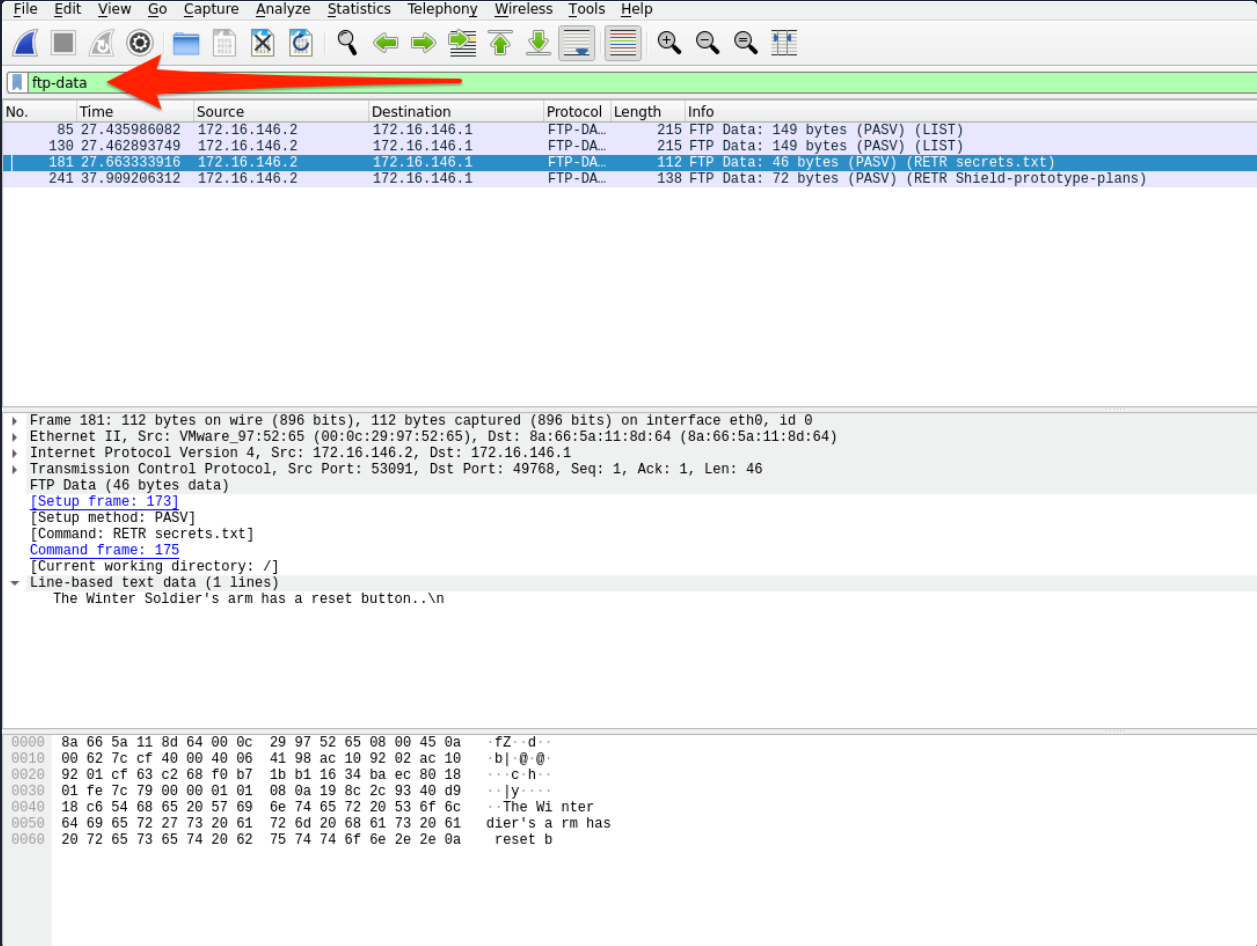
🧭 FTP File Extraction — Step‑by‑Step
- Find FTP activity
Applyftpto see hosts, sessions, and control chatter. - Identify targets
Useftp.request.commandto spot credentials and transfers (e.g.,RETR secret.docx). - Lock to the file’s data stream
Switch toftp-data, select a packet from the relevant transfer, then Right‑click → Follow → TCP Stream. - Save raw bytes
In the Follow dialog, set “Show and save data as” →Raw, then Save. Name it like the original (e.g.,secret.docx). - Validate
On Linux/macOS:On Windows, try opening it or use PowerShellfile secret.docx md5sum secret.docxGet-FileHash.
If the data stream shows binary gibberish (expected), saving as Raw writes the exact payload bytes.
🧰 Helpful Display Filters (copy‑paste)
# FTP triage
ftp
ftp.request.command
ftp.response.code
ftp-data

# HTTP triage
http
http.request
http.response
http.content_type contains "application/"
🧪 Troubleshooting
- Partial files / corrupt exports → Conversation incomplete or TCP segments missing. Re‑capture with a closer tap or disable offload features on the capture NIC.
- Empty object list → Wrong protocol exporter; confirm the traffic is actually HTTP/SMB/etc., not TLS‑wrapped.
- TLS gotchas → Encrypted (HTTPS/SMB3 w/ encryption) won’t export without keys. Look for plaintext endpoints or capture pre‑master secrets (dev/test).
- Active vs Passive FTP → Data port may vary; rely on
ftp-dataand Follow Stream instead of hard‑coding port numbers. - Reassembly settings → Check Edit → Preferences → Protocols → TCP (e.g., “Allow subdissector to reassemble TCP streams”).
📝 Quick Reference — Manual Reconstruction Flow
- Filter protocol (
ftp/http/smb2) → find the transfer. - Isolate the right stream (conversation context, 5‑tuple).
- Follow TCP Stream on the data flow.
- Save as Raw.
- Validate the file type and integrity.
✅ TL;DR
- Use Export Objects for supported protocols (HTTP/SMB/DICOM).
- For FTP, pivot on
ftp.request.commandto find the filename, then extract bytes fromftp-data→ Follow TCP Stream → Raw. - Completeness is king: no full stream → no clean file.
Comments
Comments
Loading comments…